
Resetting a MacBook, iPhone, iPad or iMac to factory settings: how to do it safely
Reset your Apple device safely to factory settings before you sell it. We'll explain, step by step, how to do this for your MacBook, iMac, iPhone or iPad.
In short
You don't want anyone else ending up with your data. That's why you should always reset your Apple device before selling it. In this article we explain, step by step, how to safely reset a MacBook, iMac, iPhone or iPad to factory settings.
You don't want anyone else ending up with your data. That's why you should always reset your Apple device before selling it. At iMac and More we always check that a device has been fully wiped — but it's still a good idea to do this yourself before handing it in or sending it to us.
Resetting a MacBook to factory settings
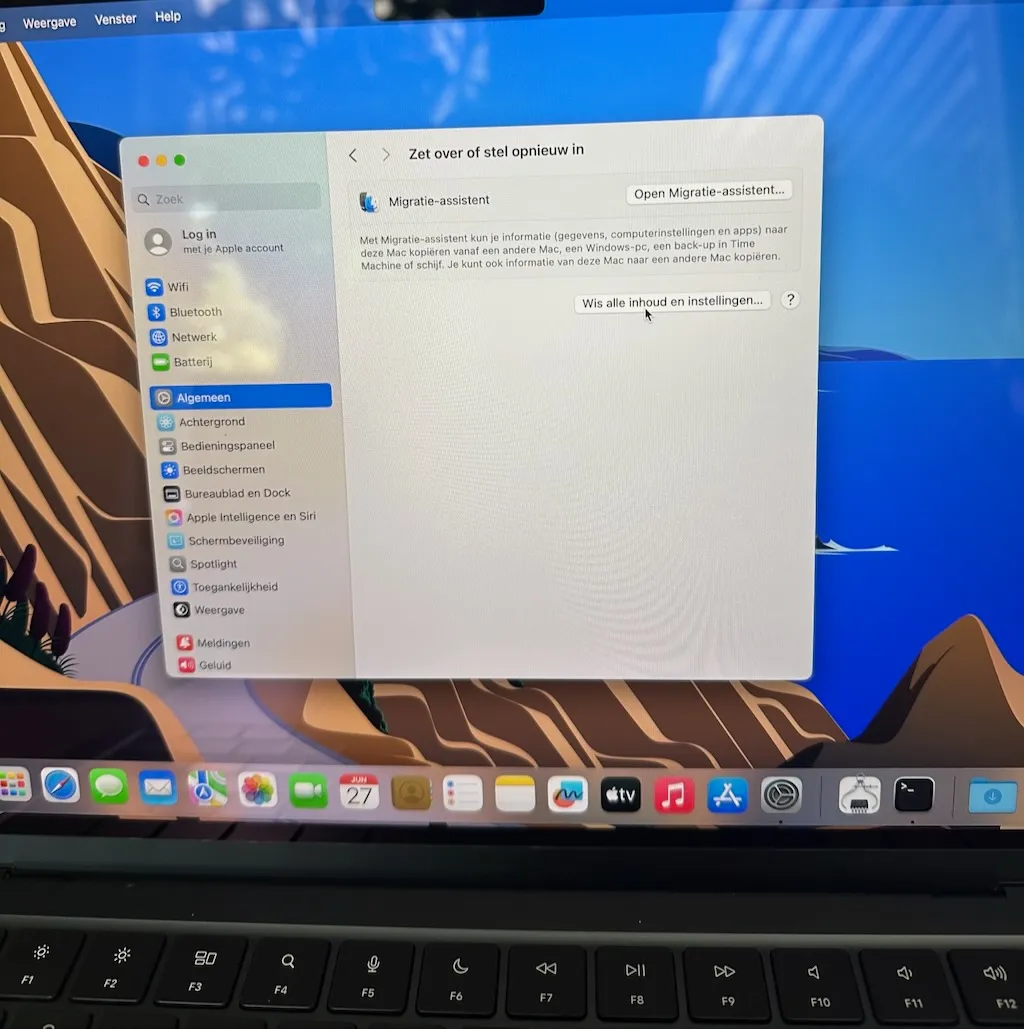
If you have a MacBook from 2016 or newer running the latest version of macOS, resetting it to factory settings is quick and easy.
- Go to System Settings
- Go to General
- Go to Transfer or Reset
- Click Erase All Content and Settings
- Follow the steps — enter your login password and then your Apple ID password
- Wait for the Mac to restart and check that it's back to factory settings
If you have a MacBook from 2015 or older, it will run an older version of macOS and the procedure is slightly different.
- Turn on your MacBook and immediately hold down Command + R for about 15 seconds, until you see an Apple logo or a recovery screen
- After a few minutes you'll enter the Apple recovery environment. Select Disk Utility
- A new window appears. In the top left you'll see your SSD drive — often named Macintosh HD, or you'll see the capacity of your drive, such as 256GB SSD. Click it once
- In the middle of the window you'll see a tab called Erase — click this once
- On the right of the screen you'll see Erase or Continue again — click that too
- The hard drive will now be erased. Once finished, click OK
- Close this window and choose the option Reinstall macOS and follow the steps
Resetting an iMac to factory settings
The same steps apply to the iMac as to the MacBook above. If you have an iMac from 2016 or newer running the latest version of macOS, use the quick method via System Settings. If you have an older iMac, use the recovery environment method via Command + R.
Resetting an iPhone to factory settings
Resetting an iPhone is done via the settings — quick and easy.
- Go to Settings
- Go to General
- Go to Transfer or Reset
- Tap Erase All Content and Settings
- Enter your passcode and your Apple ID password
- Wait for the iPhone to restart and check that everything has been erased properly
Resetting an iPad to factory settings
The same steps apply to the iPad as to the iPhone above. Go to Settings → General → Transfer or Reset → Erase All Content and Settings.
Overview: the four devices compared
| Device | Method | Location |
|---|---|---|
| MacBook 2016 or newer | System Settings → General → Erase All Content | Quick and easy |
| MacBook 2015 or older | Command + R at startup → Disk Utility | Via recovery environment |
| iMac | Same as MacBook | Same as MacBook |
| iPhone | Settings → General → Erase All Content | Quick and easy |
| iPad | Same as iPhone | Same as iPhone |
Ready to sell?
Have you reset your Apple device and want to sell it? At iMac and More we always check that a device is fully erased when we receive it. So there's no need to worry — we make sure the process is safe and transparent.
Find out what your device is worth via Sell your Apple device.
Ready to sell your Apple device?
Get a fair offer quickly, with transparent handling.