
Buying a used MacBook on Marktplaats? What to watch out for
You want to buy a used MacBook, and you've already browsed Marktplaats for good deals. Buying from a private seller can often be a little cheaper than buying from a shop; sometimes the difference is a few hundred euros. But with a private seller you need to pay close attention, because there's often a catch.
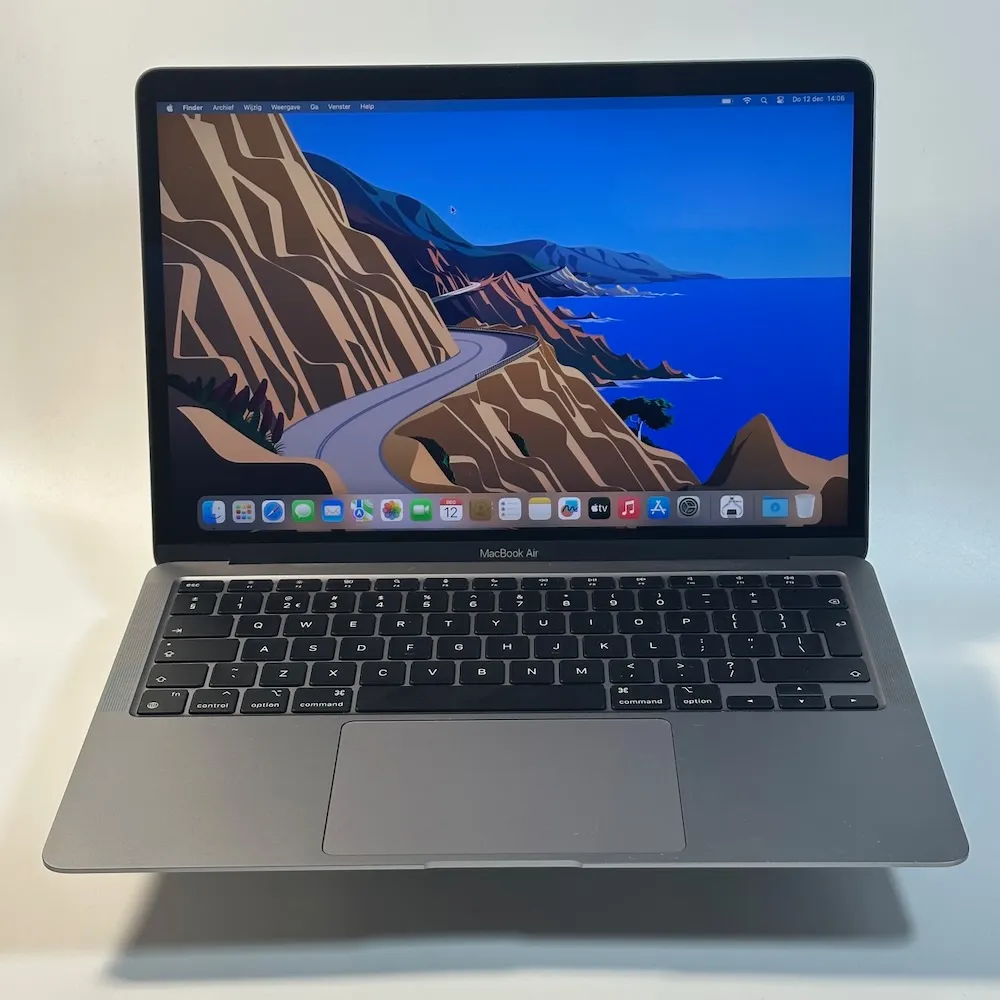
Many private sellers know little or nothing about the hardware and software. So you won't always get a clear answer to your questions. And because a private seller isn't a shop or a business, they can't give you a warranty, except up to the front door. Once you walk out, you're on your own.
Where's the catch?
Of course, things often go well. But we hear plenty of stories where they haven't gone quite so well. For example, because an iCloud account is still linked to the MacBook, even though it appears to have been reset to factory settings. How is that possible? Activation Lock remains linked to the previous owner's Apple ID, even after erasing the device, as long as they haven't turned off "Find My".
Or iCloud has been removed, but suddenly a strange company profile appears on your screen. You're asked to sign in with a username and password, even though the MacBook has been reset to factory settings. That's odd. Returning it leads to arguments and questions, and at the end of it all you're stuck with a MacBook that isn't quite right.
Very frustrating, and a waste of your time and money. As we said: it doesn't always happen, but it does happen quite often. So is buying from a business expensive, or is it actually not so bad?
7 tips if you still want to buy from a private seller
1. Check how complete the MacBook is
Does it come with the original box, the invoice and the charger? That's a good sign. The first owner often has all the information needed to answer your questions or put your doubts to rest.
2. Go through the entire factory setup
Has the MacBook already been reset to factory settings? Take your time going through the setup menu until you reach the desktop. If you get through without any problems, the iCloud window is empty and you can sign in with your own iCloud account, then the MacBook has been properly formatted and prepared for its new owner.
3. A company profile or "Remote Management" window? Don't buy it
During setup, do you see a window with a company profile or "Remote Management", saying the MacBook belongs to a company such as Booking.com or Ryanair and asking you to sign in? That's a red flag. Don't buy it.
The MacBook comes from a company that has enabled device management (MDM). This is special software managed by the IT department. It allows the company to manage all its Apple devices, and prevents staff who find another job, for example, from simply taking them along.
4. Ask the owner to sign out and remove the MacBook from their devices
Ask the owner to sign out of iCloud and show you that they've removed the MacBook from their devices, using their iPhone or iCloud.com. That way, you know for sure that the MacBook is no longer linked to their iCloud and that you can use it without any problems.
5. Assess the technical condition
Take a moment to check the MacBook. You're not being difficult: you're spending money, after all, so asking for five minutes isn't too much.
- Type a short piece of text and check that every number, letter and punctuation mark works properly.
- Plug the charger into the MacBook and test another port too.
- Check the camera and the screen brightness.
- Display a white window or white background across the whole screen, and check for dead pixels or lines.
- Play a video on YouTube. This tests the Wi-Fi and sound at the same time, so you don't discover later that a speaker is blown.
6. No box or charger? Pay attention to the condition and your gut feeling
No original box and no original charger? That isn't necessarily a problem. But what does the rest of the MacBook look like: lots of wear, lots of scratches? And what does your gut tell you? That's often one of the best indicators: your gut feeling. Listen to it. If you're not quite sure, say you'd like to think it over: "Thanks for showing it to me, I'll be in touch soon." That's an answer too.
7. Meet at the seller's home, not in a car park
Meeting in a car park, at a Bagels & Beans or at a petrol station? Imagine: everything seems to work fine, you get home and discover that something isn't right after all. The seller no longer answers the phone, and you don't have an address. You have nothing. Someone who wants to meet in a car park or by the motorway often has something to hide. My advice: meet at their home, or don't meet at all. It's that simple.
The checklist to take with you
As you've read, there are quite a few things to watch out for. You don't always feel like checking everything or have time to do it, and you might forget something. Then you still end up in trouble. So use this checklist:
- What comes with the MacBook (box, charger, receipt)?
- Go through every step of the factory setup
- Can you sign in with your own iCloud account?
- No strange Remote Management window or MDM profile?
- Does everything work: keyboard, backlighting, screen, camera, speakers and charging?
- What is the battery capacity? Check the battery settings and watch for messages such as "Service Recommended"
- Do you have a good feeling about it?
Buying from iMac and More: pay a little more, know for sure
It's a shame to buy a MacBook that isn't quite what you wanted, with catches you hadn't taken into account. At iMac and More, we make sure all these things have been checked beforehand. We check every MacBook individually, both software and hardware. After all, we give you a year's warranty, so we want to be certain everything works properly and as it should.
Yes, you pay a little more, but certainly not top prices. And you know for sure that you're getting a good, usable MacBook. If that turns out not to be the case, you can simply come back to us during the warranty period. We certainly won't walk away.
Browse our MacBook range · Buying a refurbished MacBook in 2026